
Logs
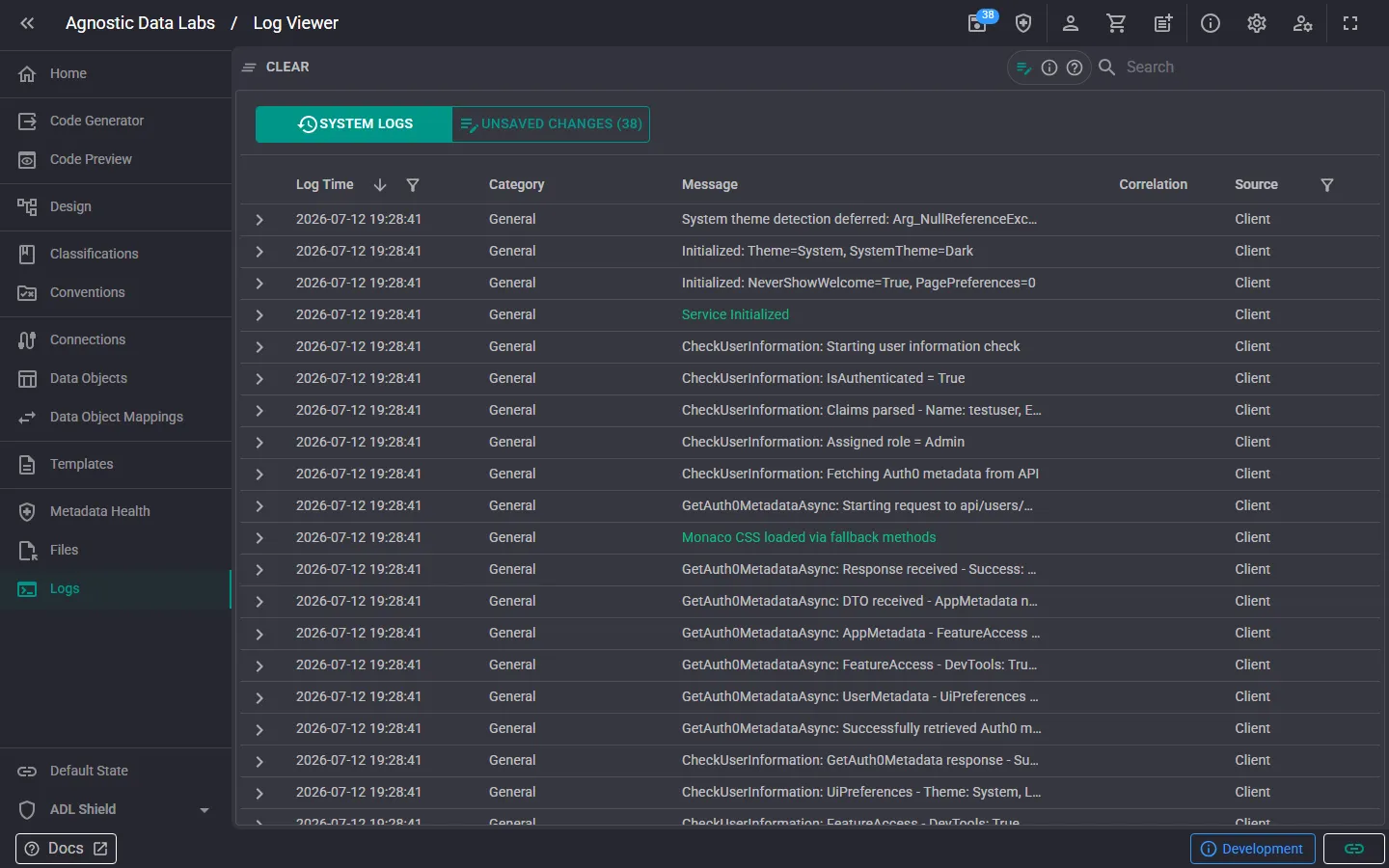
terminal The Logs screen shows you what’s happening inside ADL. It displays application log messages that can help you understand the app’s behavior and troubleshoot any issues.
What you can do here
Section titled “What you can do here”View log messages
Section titled “View log messages”Browse the log entries generated by ADL during your session. Logs capture information about:
- File operations: loading and saving metadata files.
- Code generation: template processing and output file creation.
- Errors and warnings: issues that occurred during operations.
- General activity: other app events and status updates.
Expand an entry for the full story
Section titled “Expand an entry for the full story”Click a row to expand it. The expanded view shows the complete message and any details with their original formatting and line breaks preserved — useful for stack traces and multi-line output. When available, a Correlation ID is shown too, which helps tie related log entries together when reporting an issue.
Troubleshoot issues
Section titled “Troubleshoot issues”If something doesn’t seem right — a file that didn’t load, a template that didn’t generate, or an unexpected error — the logs are the first place to look. They’ll often tell you exactly what went wrong and where.
When to check the logs
Section titled “When to check the logs”- After code generation, see if any templates failed to process or produced errors.
- When files don’t load, check for file access or format issues.
- When something seems off, the logs can confirm whether an operation completed successfully or silently failed.
- Check logs after bulk operations: if you generated output for a large project, scan the logs to make sure everything processed cleanly.
- Look for error messages first: errors and warnings are the most actionable items in the logs.
Related
Section titled “Related”- Code Generator — Generate output and check logs for results
- Files — Browse project files