Home
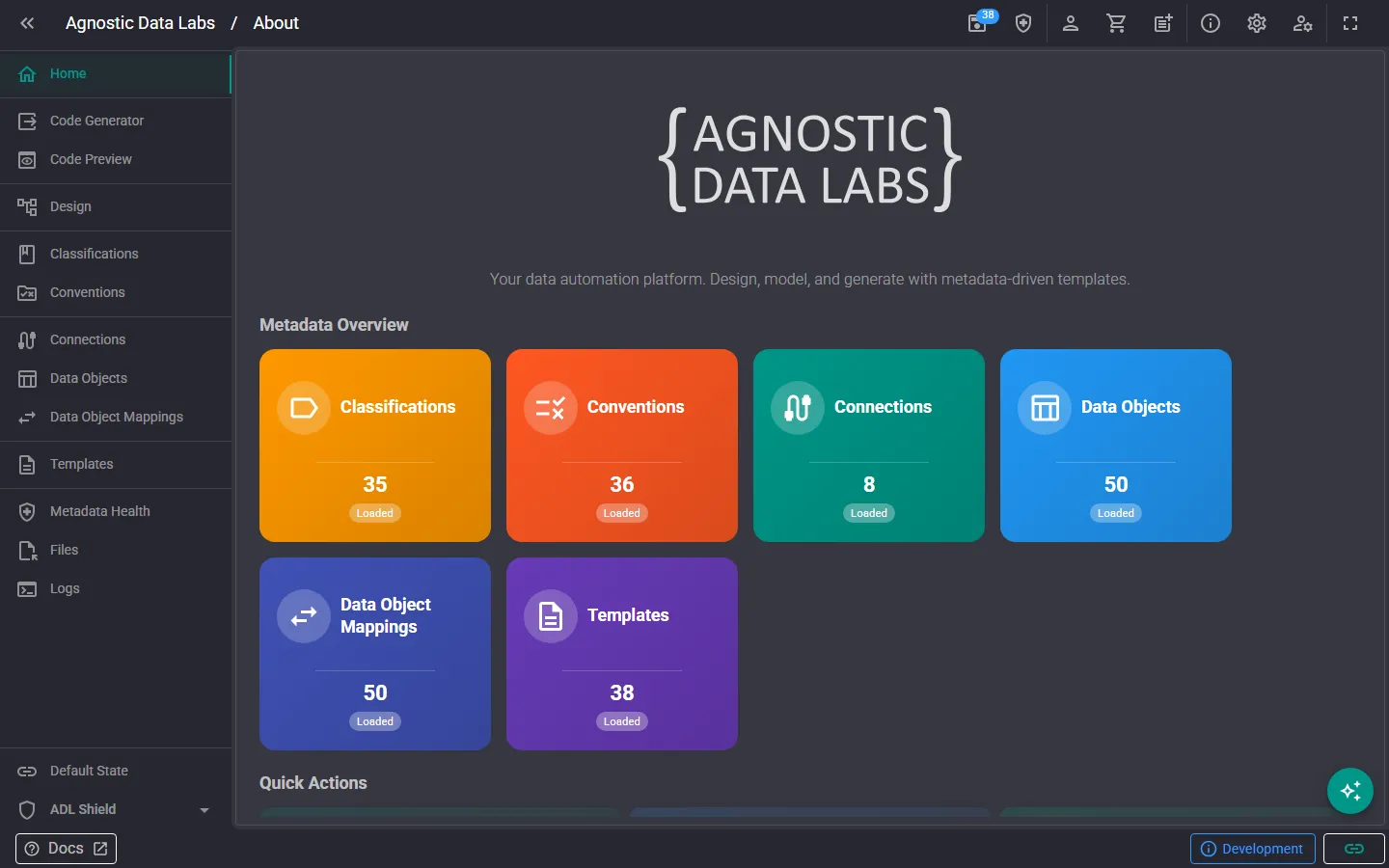
home The Home screen is the first thing you see when you open ADL. It’s your launchpad for getting into a project and starting work.
What you can do here
Section titled “What you can do here”Open an existing project
Section titled “Open an existing project”If you already have a project folder with metadata and templates, use the Open button to browse to that folder. ADL will read all the files and load your project into the app.
When you open a folder, your browser will ask for permission to read and write files in that location. This is a standard browser security feature — ADL needs this access to load and save your work. The access is strictly limited to the folder you select.
Start a new project
Section titled “Start a new project”If you’re starting fresh, the Home screen offers a Get Started guide that walks you through:
- Choosing a folder for your project
- Setting up the folder structure for your metadata
- Picking a sample data solution to start from
The guide creates all the files you need and loads them into the app, so you’re ready to go in minutes.
Browse the Marketplace
Section titled “Browse the Marketplace”The Marketplace is the catalog of pre-built sample solutions you can install into a project. It opens during the Get Started flow, and you can also reach it directly from the Home screen.
Each entry in the Marketplace bundles:
- Metadata: Data Connections, Data Objects, mappings, classifications, and personas for the chosen pattern.
- Templates: a matching template library (e.g. SQL Server stored procedures, Snowflake DDL, Fabric notebooks).
- Conventions: naming standards aligned with the pattern.
Categories include SQL Server, Snowflake, Microsoft Fabric (preview), Conceptual models, and Getting Started (an empty project). When deploying, you choose whether to include the metadata, the templates, or both.
For the full list of samples and their design notes, see Sample Designs.
Navigate the app
Section titled “Navigate the app”Once a project is loaded, use the sidebar menu to navigate to the different areas of ADL. The Home screen also provides quick links to the most common starting points.
- Use a Git repository as your project folder. This way, all your metadata and templates are version-controlled from the start.
- Run the Get Started guide if you’re new to ADL — it’s the fastest way to see how everything works with real data.
- Re-open recent projects by browsing to the same folder. ADL will pick up right where you left off.
Related
Section titled “Related”- Getting Started — Step-by-step setup guide
- Sample Projects — Pre-built solutions to explore
- Files — Managing files in your project