
Files
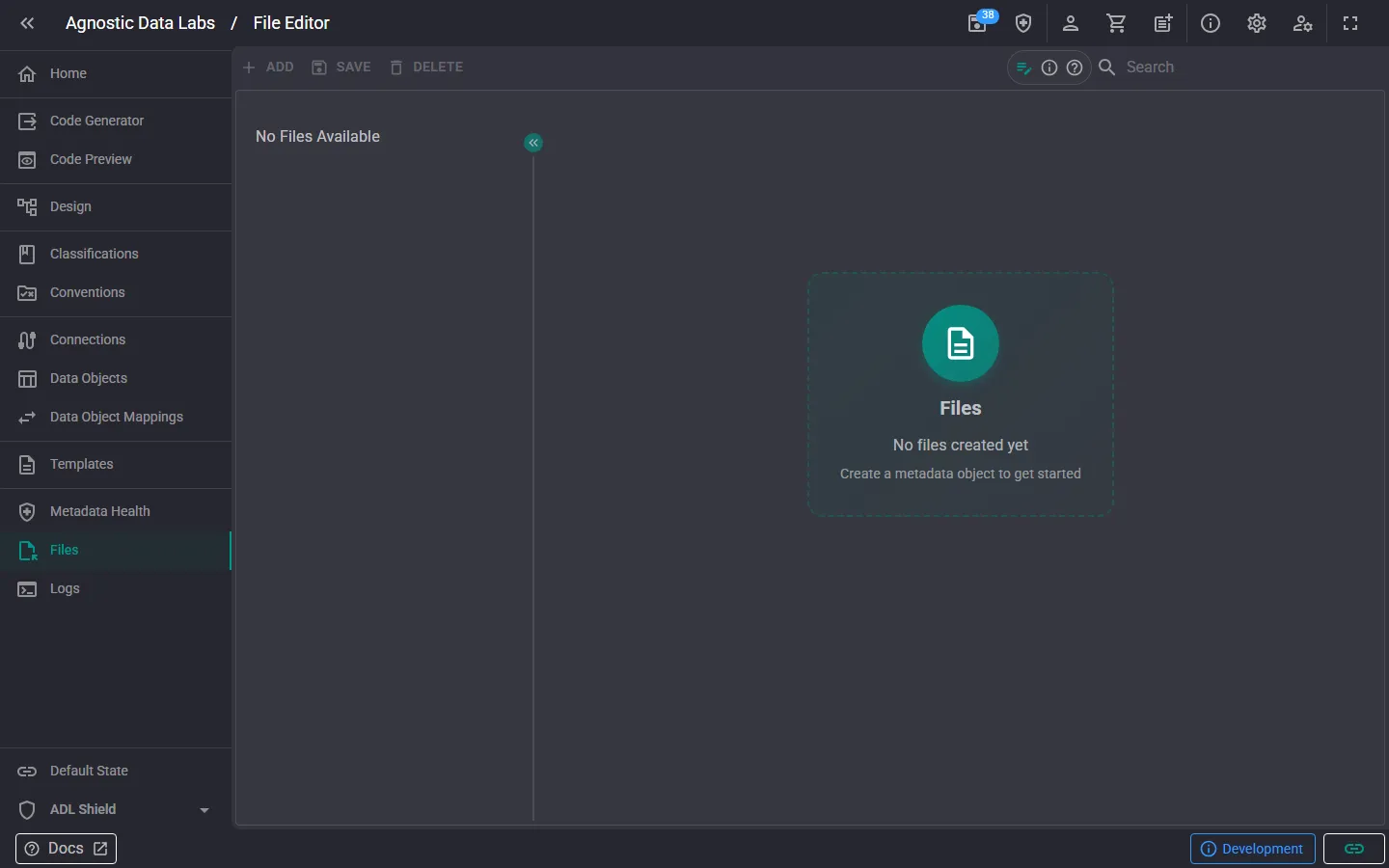
file_open The Files screen gives you a direct view of the files in your project folder. While most of the time you’ll work with metadata through the other screens in ADL, the Files screen is useful when you want to see what’s on disk.
What you can do here
Section titled “What you can do here”Browse project files
Section titled “Browse project files”See all the metadata files, templates, and generated output in your project folder. Files are organized by type — data objects, connections, mappings, templates, and output.
Manage files
Section titled “Manage files”- Review file contents to see what’s stored in each metadata file.
- Check the file structure to verify that your project folder is organized the way you expect.
- Monitor generated output by reviewing the files produced by the Code Generator.
How files are organized
Section titled “How files are organized”ADL stores each type of metadata in its own subfolder within your project. The default folder structure looks something like:
/connections/— Data connection files/dataobjects/— Data object files/mappings/— Data object mapping files/templates/— Template files/output/— Generated output files
You can customize this folder structure when setting up a project. All files are plain JSON (for metadata) or Handlebars (for templates), so you can open them in any editor.
- Use your IDE alongside ADL: since all files are plain text in your repository, you can open the same project folder in VS Code, IntelliJ, or any other editor to work with files directly.
- Check the output folder after generating: it’s a good habit to review what was generated before committing.
- Don’t edit metadata JSON by hand unless needed: the ADL app screens are designed to keep your metadata valid and consistent. Manual edits are fine, but the app is usually the safer option.
Related
Section titled “Related”- Home — Open and manage projects
- Code Generator — Generate output files
- How ADL Works (Concepts) — Understand the metadata-to-output workflow