Data Objects
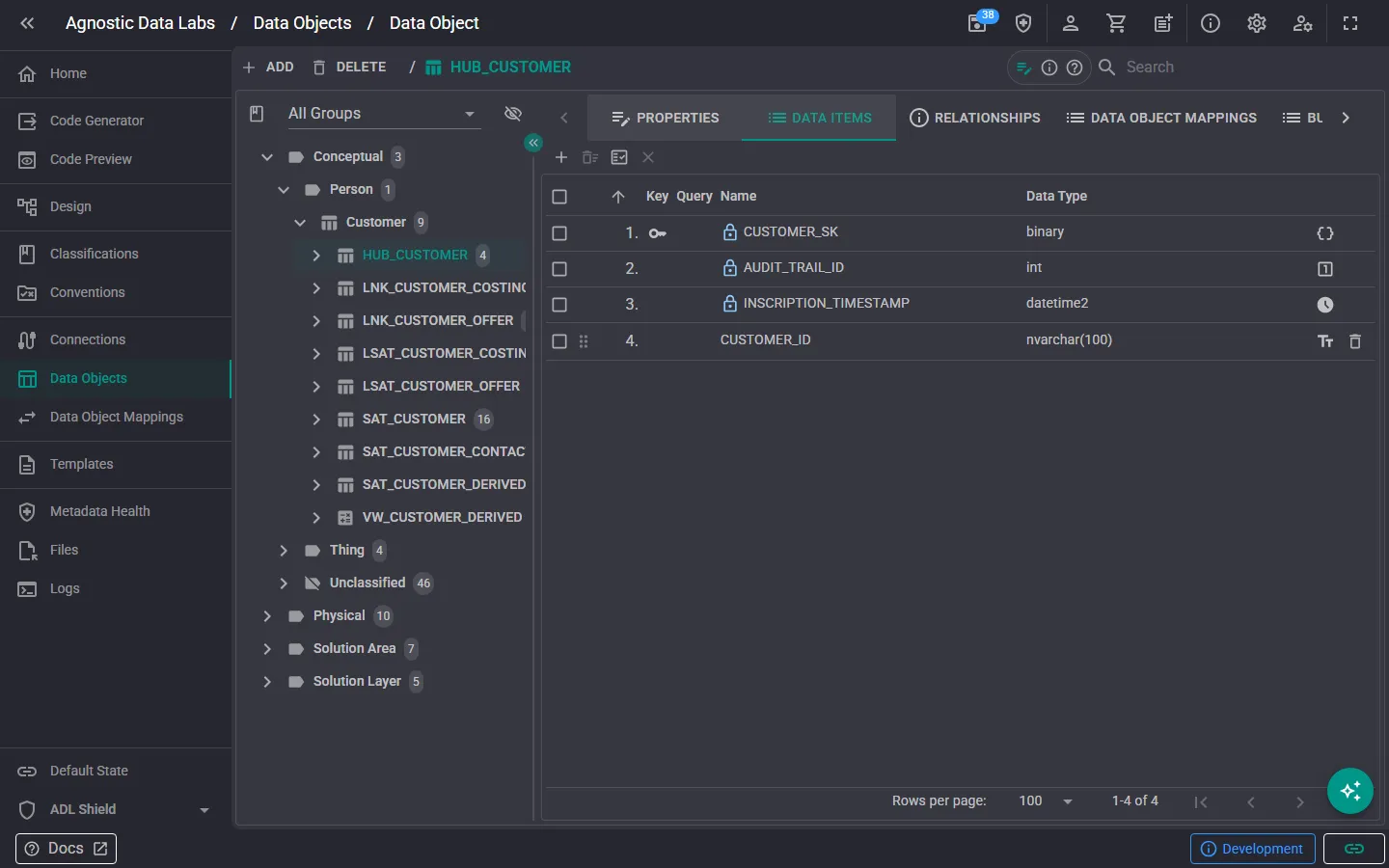
table_chart The Data Objects screen is where you define the core building blocks of your data solution. A data object typically represents a table, view, or query in your target database.
What you can do here
Section titled “What you can do here”Create and manage data objects
Section titled “Create and manage data objects”- Add new data objects to your project, specifying a name and the connection where the object lives.
- Edit existing objects to update names, descriptions, and other properties.
- Delete objects you no longer need.
- Browse all objects in your project using the list view.
Define columns (Data Items)
Section titled “Define columns (Data Items)”Each data object contains Data Items, the columns or fields that make up its structure. For each Data Item, you can set:
- Name: the column name.
- Data type: the SQL data type (e.g.,
INT,NVARCHAR(100),DATE). - Nullability: whether the column allows null values.
- Ordinal position: the column’s order in the table.
- Default value: an optional default for the column.
Set up business keys
Section titled “Set up business keys”Business keys identify which columns uniquely define a record in your data object. This is essential for patterns like Data Vault, where business keys drive how data is loaded and linked.
Manage relationships
Section titled “Manage relationships”Relationships link data objects to each other, similar to foreign keys. They help ADL understand how your data objects connect, which is useful for templates that generate join logic or relationship documentation.
The Relationships tab shows both sides of the picture:
- Outgoing: relationships this object owns, which you can add, edit, and remove. When adding one, ADL suggests a type (such as contains, foreign key, or types from your project’s relationship rules) and a cardinality.
- Incoming: relationships other objects have pointing at this one, shown read-only with a shortcut to navigate to the owning object. An incoming contains relationship is shown as the object’s Parent.
Objects related by contains are drawn nested inside their parent on the Design screen’s Model mode — see Containment & Child Objects.
Apply classifications
Section titled “Apply classifications”Tag your data objects and individual data items with classifications like PII, Sensitive, or any custom labels your project uses. These classifications can be referenced by templates to generate appropriate handling logic.
Configure template mappings
Section titled “Configure template mappings”Template mappings tell ADL which templates should be used to generate output for each data object. You can assign one or more templates to any data object.
Add extensions
Section titled “Add extensions”Extensions are custom key-value pairs that let you attach any additional metadata to your data objects. Templates can reference extensions to customize their output — for example, storing a schema name or a deployment flag.
- Start with connections first: before creating data objects, make sure you’ve set up your Data Connections so you have somewhere to assign each object.
- If you have an existing database, use the Metadata Importer to import its structure directly instead of creating objects by hand.
- The Design screen gives you a visual map of your data objects and their relationships.
Related
Section titled “Related”- Metadata & Data Objects (Concepts) — Understand the concepts behind data objects
- Data Object Mappings — Define how data flows between objects
- Connections — Set up where your data objects live