
Templates
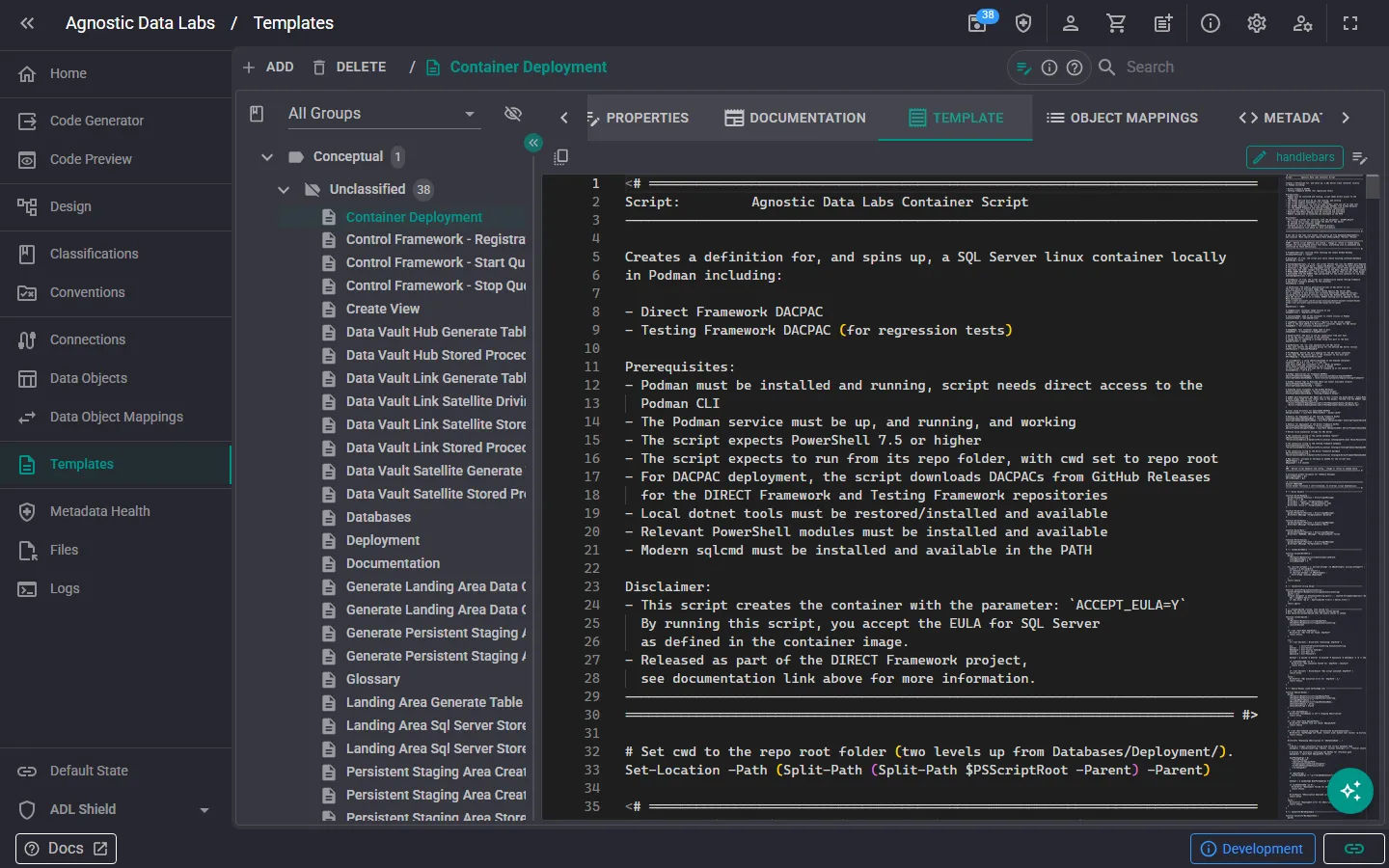
description The Templates screen is where you create and manage the templates that drive ADL’s code generation. Each template is a Handlebars file that defines what output should be generated for your data objects.
What you can do here
Section titled “What you can do here”Create and manage templates
Section titled “Create and manage templates”- Add new templates to your project.
- Edit templates using the built-in code editor, which provides syntax highlighting for Handlebars.
- Delete templates you no longer need.
- Browse all templates in your project.
Edit with the built-in editor
Section titled “Edit with the built-in editor”ADL includes a full-featured code editor for working with templates. You can write Handlebars syntax with the help of syntax highlighting, and see your template content alongside your metadata.
Preview output
Section titled “Preview output”While editing a template, you can quickly check how it renders against your metadata objects using the Code Preview screen.
What’s a template?
Section titled “What’s a template?”A template is a text file that mixes static content with Handlebars expressions. When ADL processes the template against a data object, it replaces the expressions with real values from your metadata.
Templates can generate any text-based output — SQL scripts, documentation, configuration files, deployment scripts, and more.
ADL comes with a library of built-in templates for common patterns. You can use them as-is, customize them, or write your own from scratch.
- Start with the built-in templates: even if you plan to write custom templates, the built-in ones are a great reference for how to structure your Handlebars code.
- Use the Code Preview often: it’s the fastest way to check that your template produces the output you expect.
- Check the Handlebars Helpers: ADL provides custom helper functions that make working with metadata much easier.
- Keep templates focused: a template that does one thing well is easier to maintain than one that tries to handle every scenario.
Related
Section titled “Related”- Templates & Code Generation (Concepts) — Understand how the template system works
- Code Generator — Generate output for all your mapped objects at once
- Code Preview — Preview individual template output
- Handlebars Helpers — Custom helper functions for your templates