

Code Generator
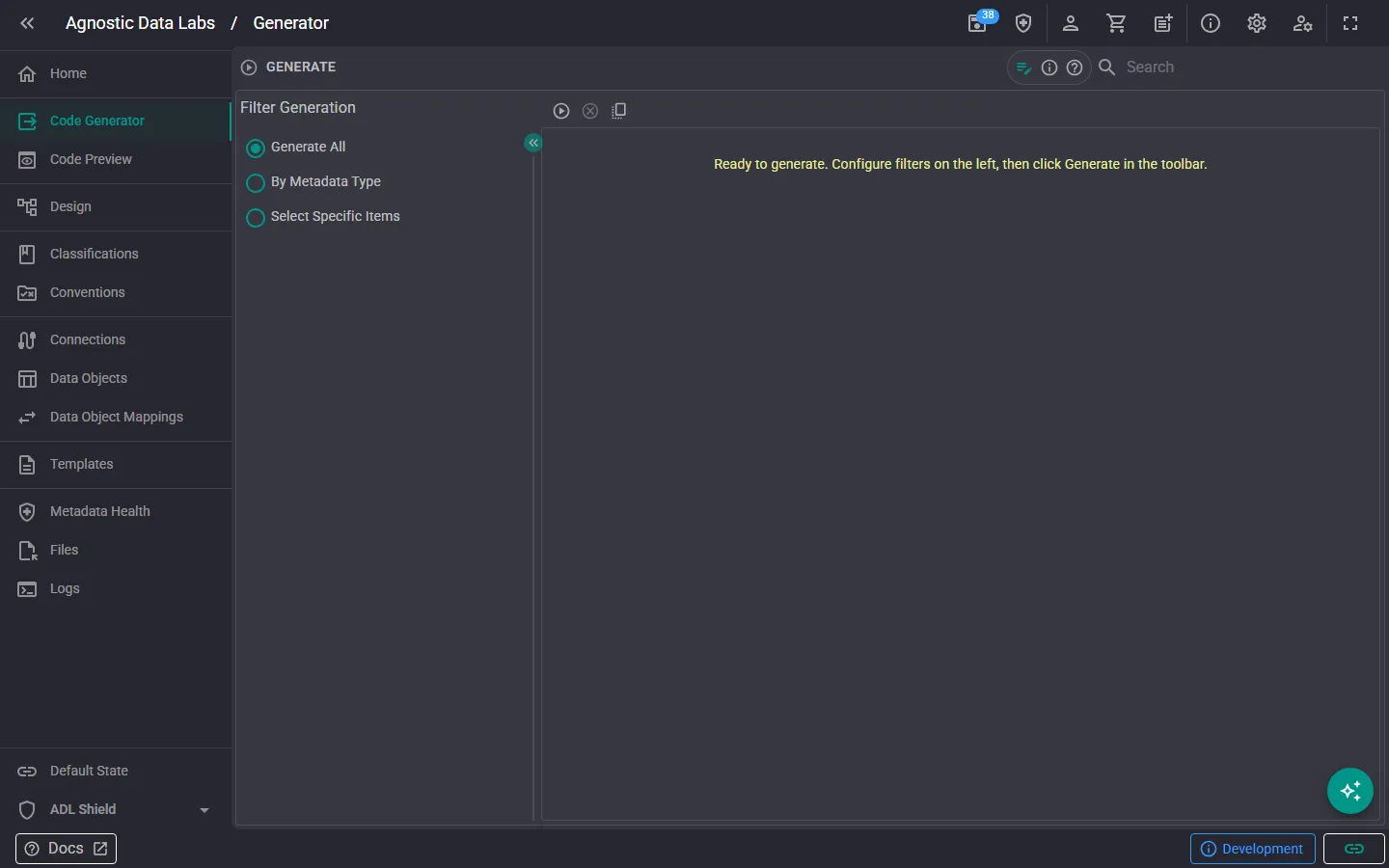
output The Code Generator screen is where everything comes together. This is where ADL takes your metadata, applies your templates, and writes the generated output to files in your project folder.
What you can do here
Section titled “What you can do here”Generate all output
Section titled “Generate all output”Click the generate button and ADL will process every template mapping in your project:
- For each data object with a template mapping, ADL reads the metadata.
- It applies the mapped template, filling in Handlebars expressions with real values.
- The result is written as a file to your output folder.
One mapping = one output file. So if you have 50 data objects each mapped to a template, you’ll get 50 generated files.
Review generation results
Section titled “Review generation results”After generation, you can see which files were created and check for any issues. The output files land in your project folder, ready to be reviewed, committed, and deployed.
The generation workflow
Section titled “The generation workflow”Here’s a typical workflow:
- Set up your metadata by defining your connections, data objects, and mappings.
- Choose your templates: pick from the built-in templates or create your own on the Templates screen.
- Create template mappings to link each data object to the templates that should generate output for it.
- Preview first, using the Code Preview to check individual outputs before generating everything.
- Come to this screen and generate all output in one go.
- Review and deploy: check the generated files, commit them to your repository, and deploy through your CI/CD pipeline.
- Preview before generating: use the Code Preview screen to spot-check individual outputs before running a full generation.
- Check your template mappings. If a data object doesn’t have a template mapping, no output will be generated for it, so make sure everything is mapped.
- Regenerate freely. Generation overwrites previous output files, so you can regenerate as often as you like as you refine your metadata and templates.
Related
Section titled “Related”- Code Preview — Preview individual template output
- Templates — Manage your templates
- Templates & Code Generation (Concepts) — Understand how the template system works