
Connections
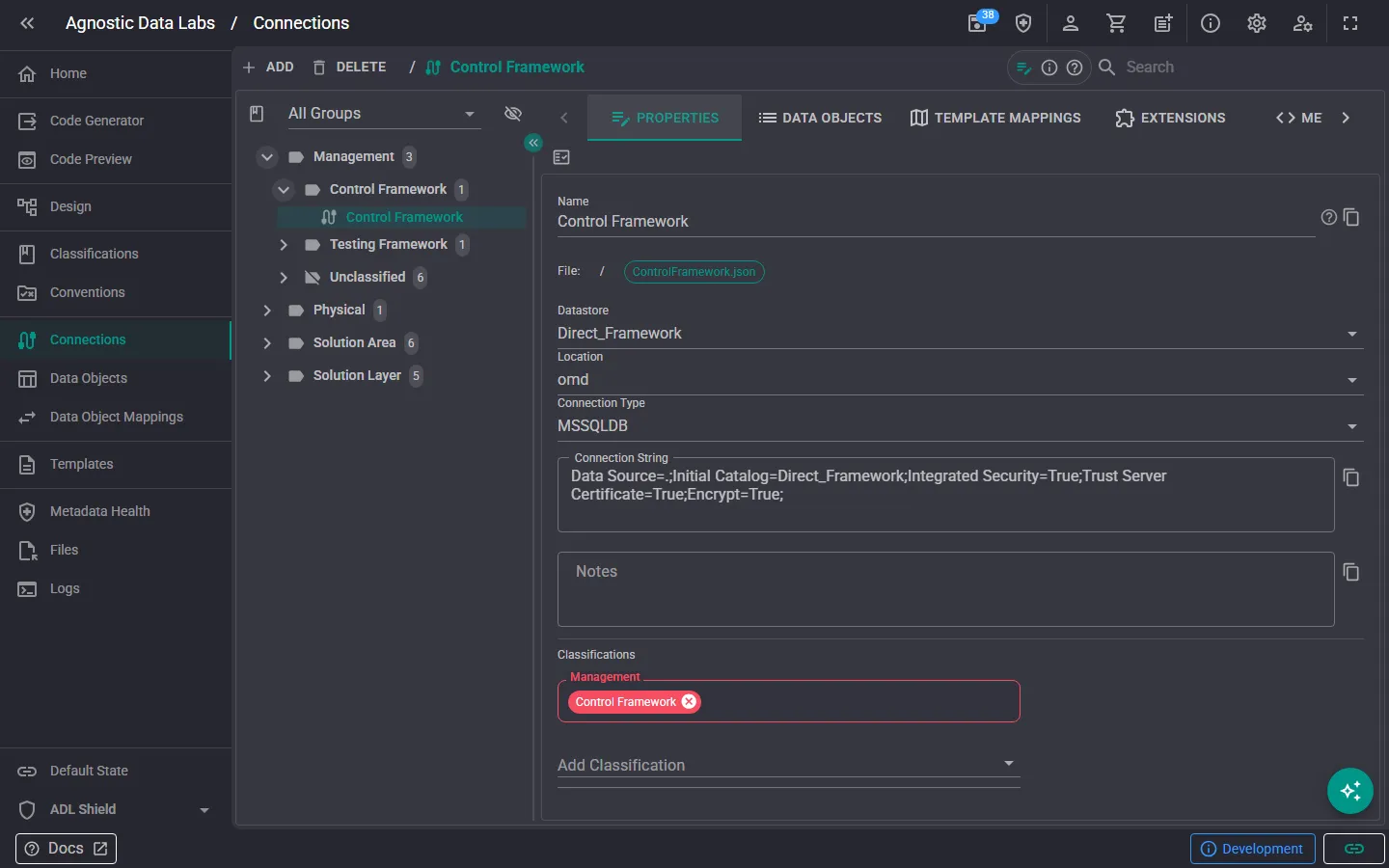
cable The Connections screen is where you define the locations where your data lives. A connection represents a database, warehouse, schema, or other data store that your data objects belong to.
What you can do here
Section titled “What you can do here”Create and manage connections
Section titled “Create and manage connections”- Add new connections to your project — one for each database or schema you’re working with.
- Edit existing connections to update names, connection strings, or other properties.
- Delete connections you no longer need.
- Browse all connections in your project.
Configure connection properties
Section titled “Configure connection properties”Each connection includes:
- Name: a descriptive label (e.g., “Source System”, “Staging Area”, “Data Vault”).
- Connection type: what kind of system this is, such as SQL Server, Snowflake, or PostgreSQL.
- Connection string: the details needed to connect to this data store.
- Location: the schema, catalog, or database name.
- Qualifiers: the characters used to quote identifiers (e.g.,
[and]for SQL Server,"for PostgreSQL). - Separator: the character used between schema and table names (typically
.).
Apply classifications
Section titled “Apply classifications”You can tag connections with classifications to indicate sensitivity levels or organizational categories.
A typical setup
Section titled “A typical setup”Most data projects have a handful of connections representing the different layers of the solution:
- Source: where the original data comes from.
- Staging / Landing: a temporary area where source data is loaded before processing.
- Persistent Staging: a history-preserving staging layer.
- Integration: where transformed data is structured (e.g., a Data Vault).
- Presentation: where data is served to end users and reporting tools.
You don’t need all of these — just create the connections that match your architecture.
- Set up connections early: data objects need a connection, so it’s best to create your connections before defining tables and views.
- Use clear, descriptive names: when you have multiple connections, names like “AdventureWorks Staging” are much easier to work with than “Connection1”.
- Check your connection type: templates often generate platform-specific output, so making sure your connection type is accurate helps ensure the right SQL syntax is used.
Related
Section titled “Related”- Data Objects — Create objects that belong to your connections
- Metadata & Data Objects (Concepts) — Understand the core metadata model
- Sample Projects — See how connections are set up in example solutions