
AI Assistant
auto_awesome The AI Assistant is a chat panel built into ADL that helps you work on your metadata in natural language. It’s aware of the screen you’re on and the project you have open, and it can make real (staged) changes — adding data objects, mapping columns, applying classifications, drafting templates — which you review and save like any other edit.
It’s a bring-your-own-key feature: you connect your own AI provider account, and requests go directly from your browser to that provider. Your metadata never passes through Agnostic Data Labs.
Where to find it
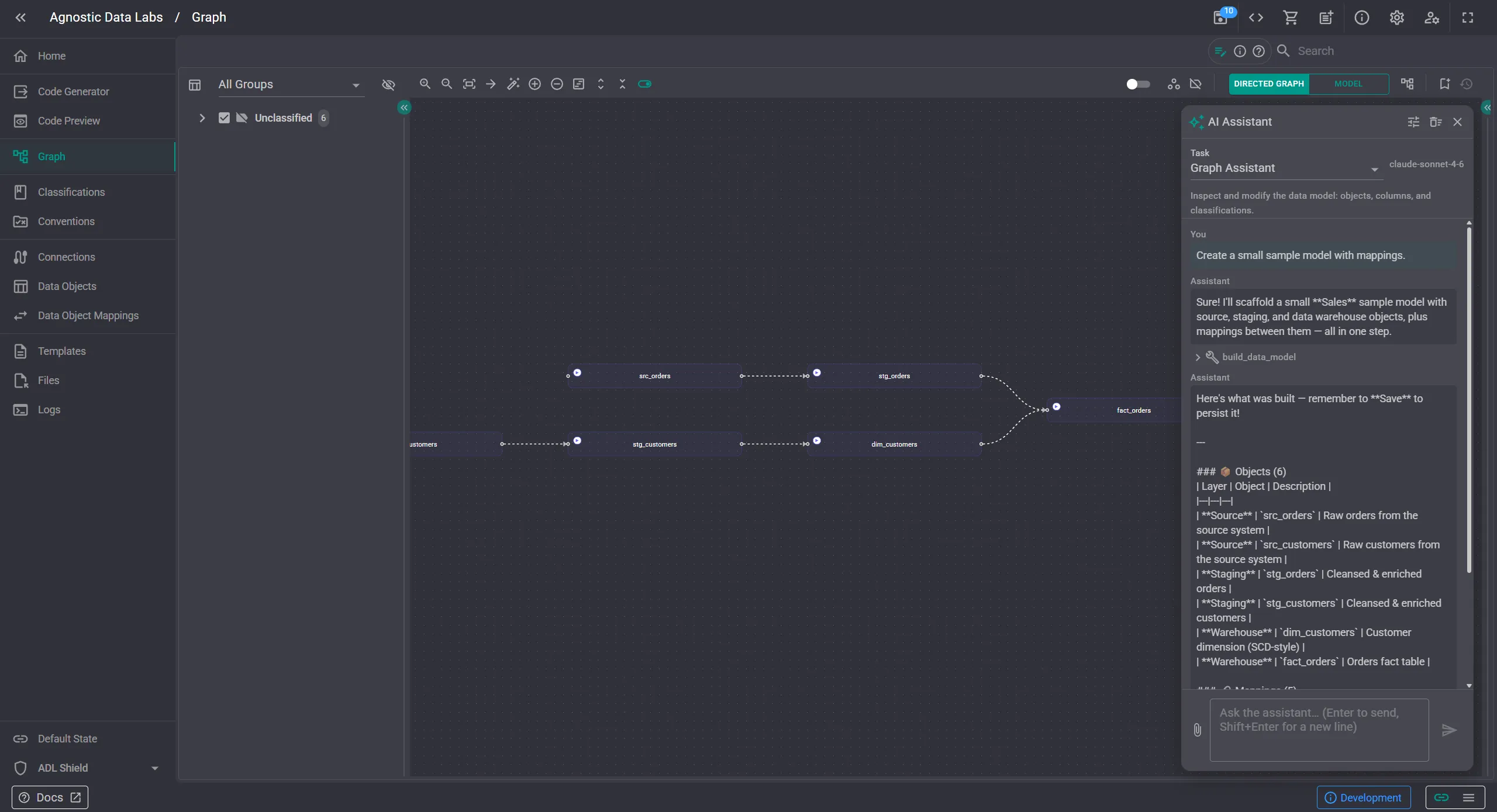
Section titled “Where to find it”Once you’re signed in with a repository connected, a floating AI Assistant button (a sparkle icon) appears in the bottom-right corner of most screens. Click it to open the assistant panel. It’s available on the metadata-authoring screens — Home, Design, Data Objects, Data Object Mappings, Classifications, Connections, Conventions, Templates, Code Generator, and Code Preview — and hidden on screens where it wouldn’t help (such as Configuration, Logs, and Profile).
If the assistant isn’t set up yet, the panel shows a prompt with an Open AI settings button that takes you to the configuration page.
What you can do here
Section titled “What you can do here”Get help in context
Section titled “Get help in context”Each screen offers a matching Task, for example Graph Assistant on the Design screen, Mappings Assistant on Data Object Mappings, or Template Assistant on Templates. The assistant knows what the screen is for and tailors what it can do accordingly. On the Home screen it acts as a general guide to the app.
Make changes by asking
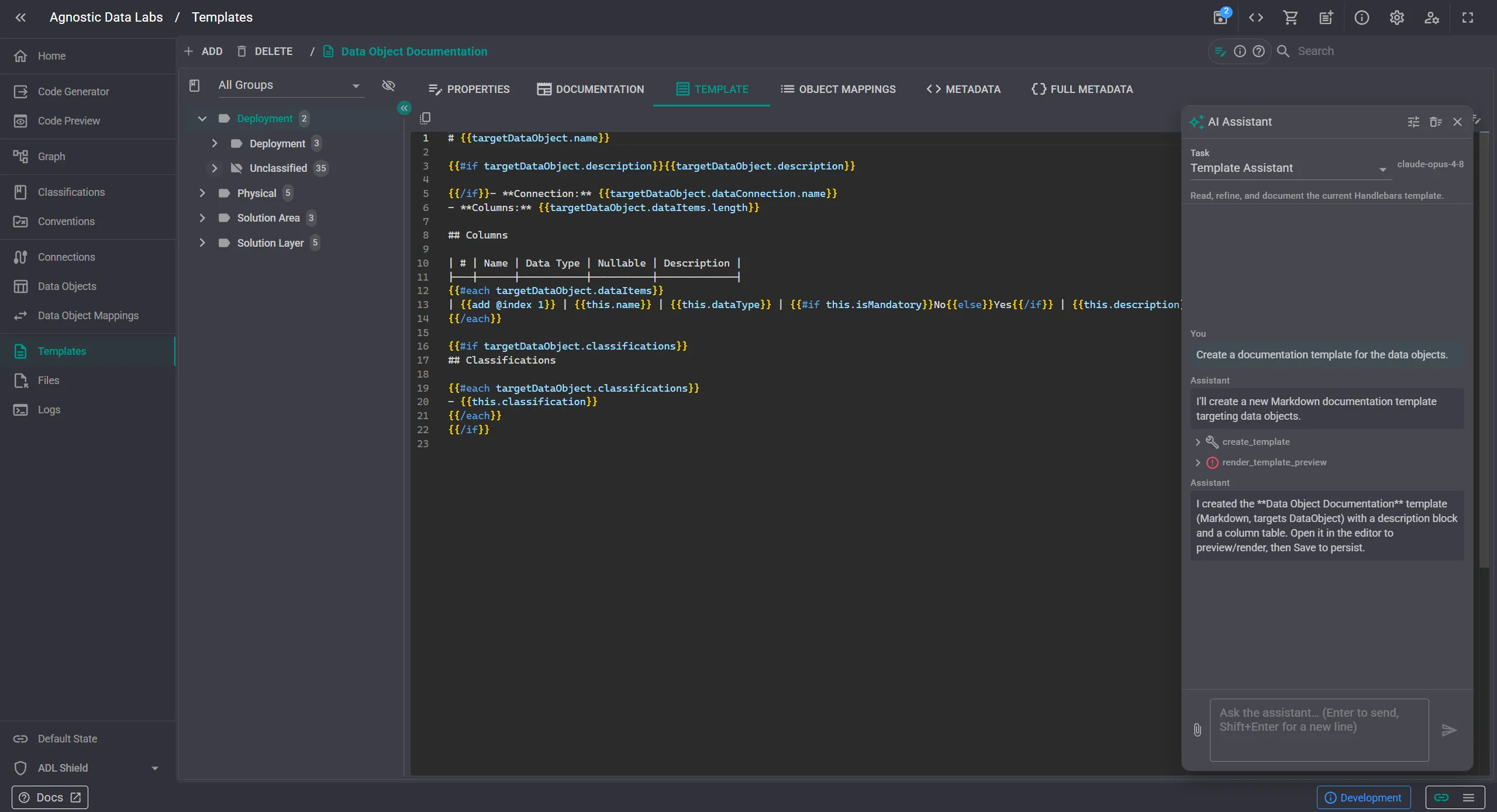
Section titled “Make changes by asking”The assistant can stage edits to your in-memory model: create or update data objects, data items, relationships, business keys, mappings, and classifications; auto-map columns by name; restyle nodes; or build out a whole sample model from a description. Staged changes go through the normal save flow — nothing is written until you save.
For bulk or destructive changes, the assistant asks for approval first and shows a preview of what it’s about to change (you can turn this gate on or off in the settings).
Attach files for context
Section titled “Attach files for context”Use the paperclip button to attach schema exports, DDL scripts, CSV/JSON files, PDFs, or images (up to 5 files, 5 MB each). The files are read in your browser and sent directly to the AI provider — handy for “import this schema” or “map these columns” requests.
Work with templates and generation
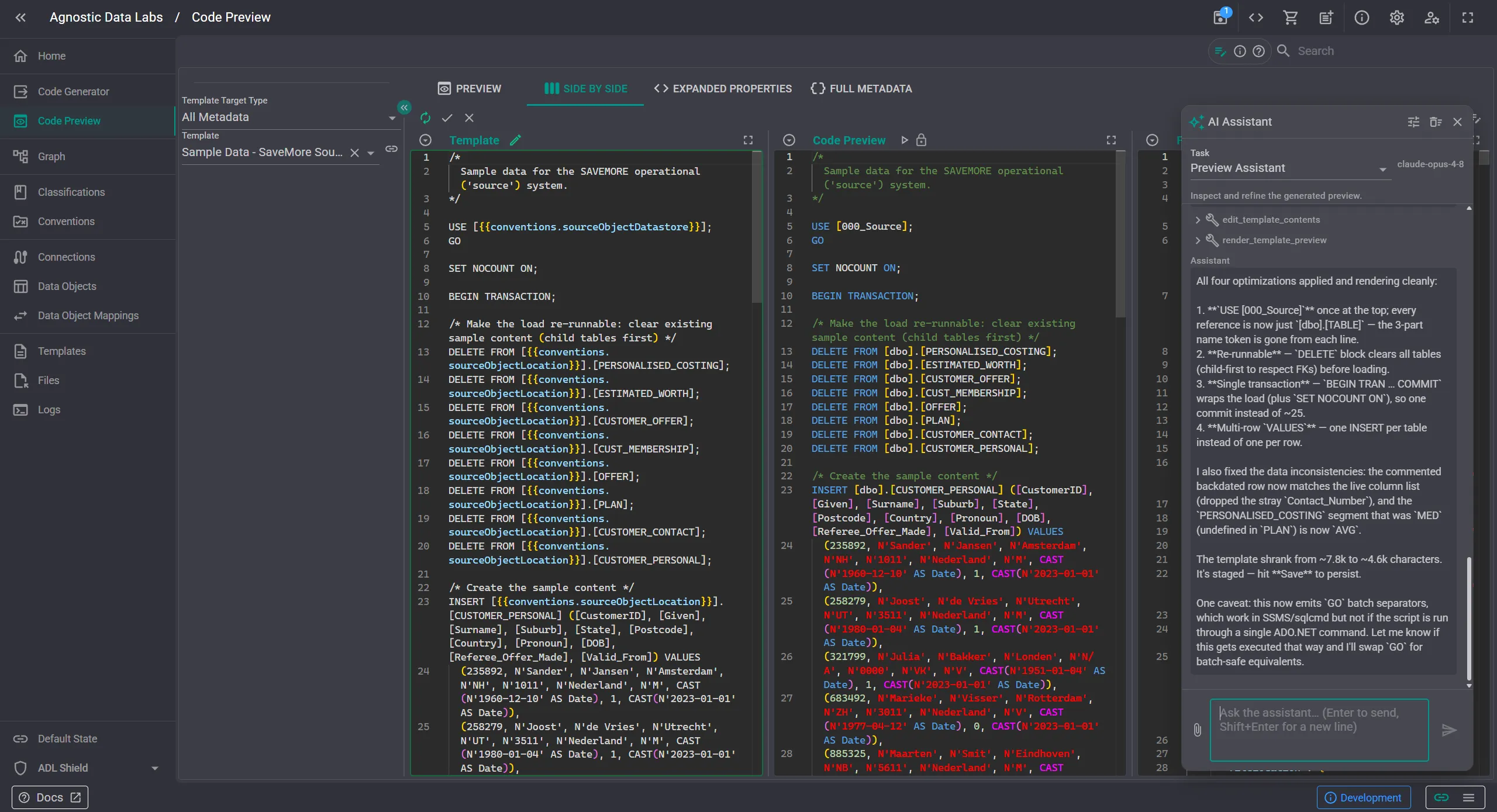
Section titled “Work with templates and generation”On the Templates screen, the assistant can create, edit, document, and preview Handlebars templates. On the Code Generator screen it can run generation for you, and on Code Preview it can inspect and refine the rendered output — applying template optimizations and re-rendering until the result is right.
Tune the behavior
Section titled “Tune the behavior”- Use the task selector to switch between the tasks available on the current screen.
- Open the tune icon to view and edit the system prompt; you can reset to the default or save your version to the project (
settings/skills.json), so your team shares the same behavior. - Stop a running request at any time, or clear the conversation and start fresh.
Setting it up
Section titled “Setting it up”Configuration lives in Configuration → AI Assistant:
- Turn on the Enable the AI assistant in this project switch. This is a project-level setting: when off, the button and panel are hidden for everyone working in the project.
- Choose a provider and model. Currently this is Anthropic (Claude), with a choice of Claude models.
- Add your API key. The key is stored only in your browser’s local storage. It is never written to your project folder, so it can’t leak through version control, and each team member uses their own key.
- Test the connection. A test button confirms the key works.
- Optionally adjust thinking and effort levels and the context and safety options (include the selected entity in context, include the classifications list, require approval for bulk or destructive changes).
Privacy
Section titled “Privacy”- Requests go directly from your browser to the AI provider: no ADL server sits in between.
- Your API key stays in your browser (local storage); it is never saved to project files.
- The assistant only sends the context needed for the task, and you control the context options in settings.
- Give it real work. “Add a satellite for Customer with these five attributes” or “map all matching columns from staging to the hub” are exactly the kinds of tasks it handles well.
- Review before saving. Staged changes appear in the app just like manual edits — check them on the relevant screen, then save.
- Save a tuned system prompt if your team has house rules (naming, modeling style) — the assistant will follow them in every session.
Related
Section titled “Related”- Configuration — Set up the provider, model, API key, and safety options
- Design — The assistant can build and restyle the model shown here
- Templates — Template authoring with AI support